How to Upscale Anime Art and Illustrations Cleanly
Published
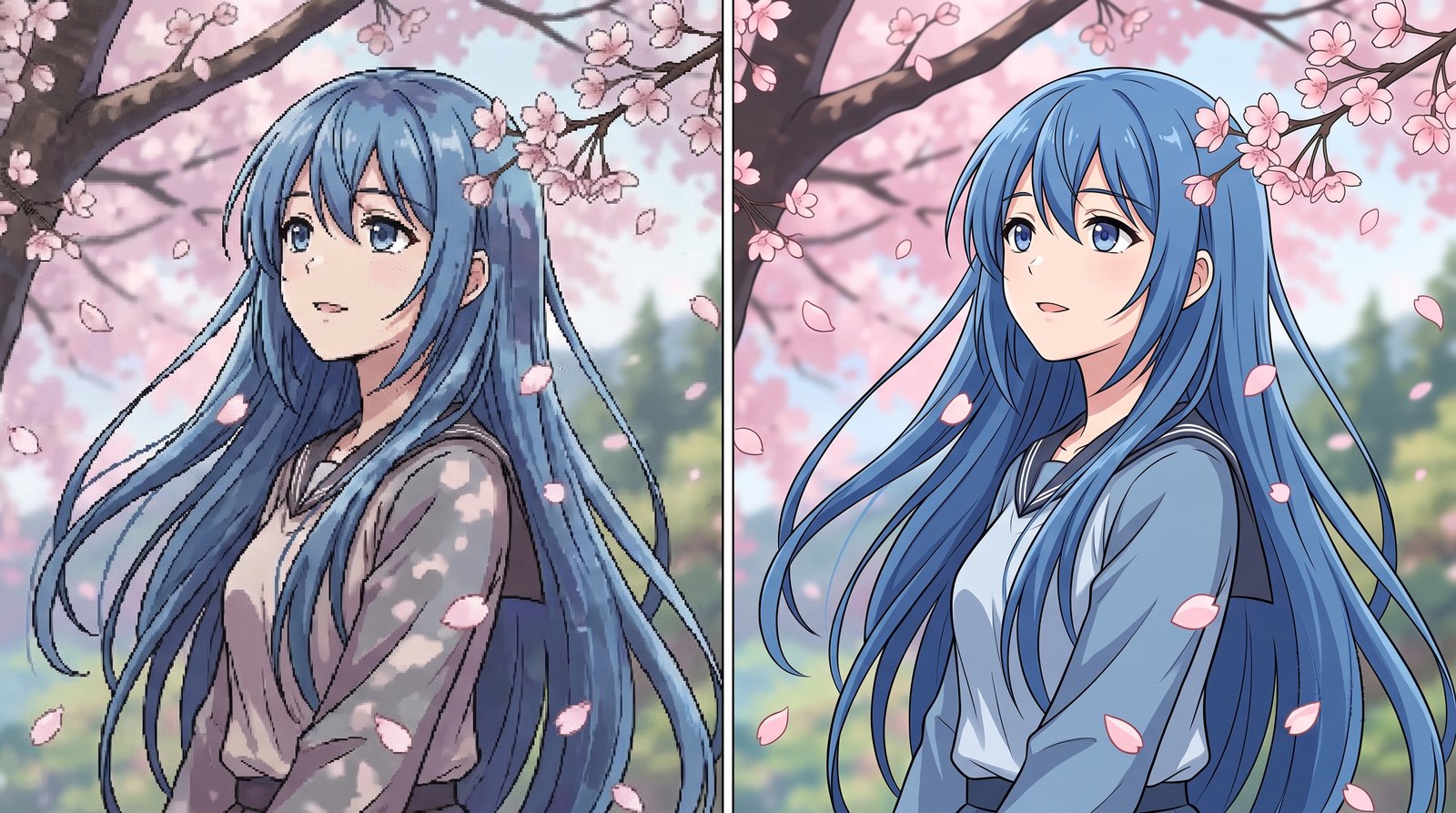
Anime screenshots, fan art and manga panels are often shared at low resolution. Enlarge them with a general photo model and you may get painterly smudges, wobbly line art or invented texture in flat areas.
Why Anime Needs a Different Model
Photographs are full of noise, gradients and organic textures. Illustrations are the opposite:
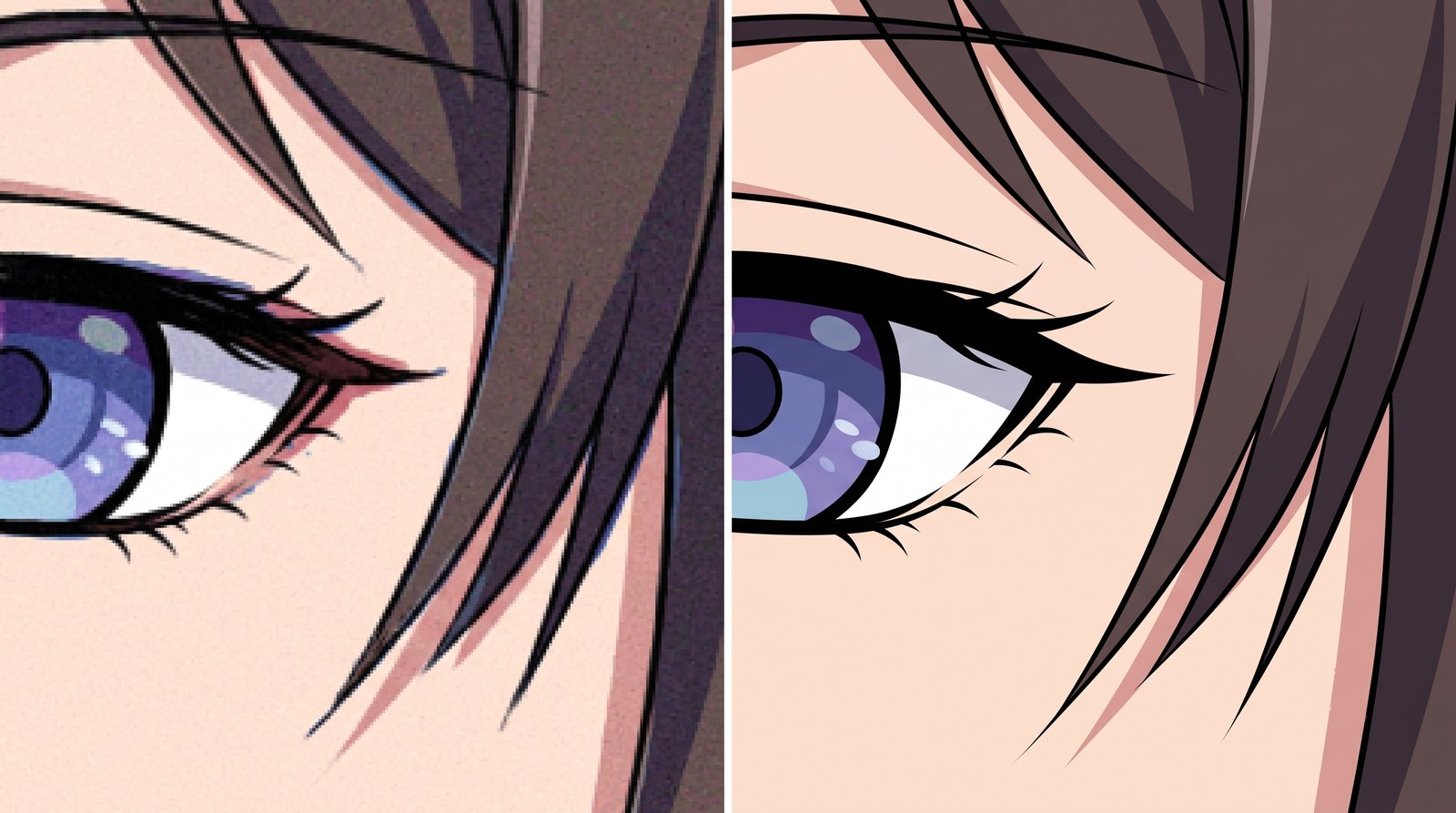
- Bold, consistent line art that must stay smooth and unbroken.
- Large flat or cel-shaded colour areas that should remain clean.
- Sharp colour boundaries between hair, skin and background.
A photo-trained model tries to “find” texture everywhere and can add grain to flat skies or skin. Anime-specific models such as Real-ESRGAN Anime are trained on illustrations, so they keep lines crisp and fills flat.
Best Uses
- Upscaling wallpapers to 1440p or 4K screens.
- Enlarging fan art and character sheets for printing.
- Cleaning manga or webtoon panels saved at small sizes.
- Restoring old anime screenshots from DVDs or early streaming.
How to Upscale Anime with Crispix
- Open Crispix and drop your illustration in.
- Set Upscaling method to AI and AI model to Anime & illustration, pick an Output size, then click Enhance.
- Check line edges with the Before/After slider.
- Download the result.
Tips
- Use the anime model only for drawn art. For real photos, the General (photos) model gives more natural texture.
- Pixel art is different. Sprites and retro game graphics should keep hard pixel edges; use the Pixel upscaling method instead.
- Respect the artist. Upscale art for personal use, and credit or ask the creator before reposting.