How to Restore Old, Blurry Family Photos with AI
Published
Old prints fade, scans pick up dust and grain, and photos copied from albums with a phone are often small and soft. With a good scan and an AI enhancer, you can bring many of them back to life in minutes.
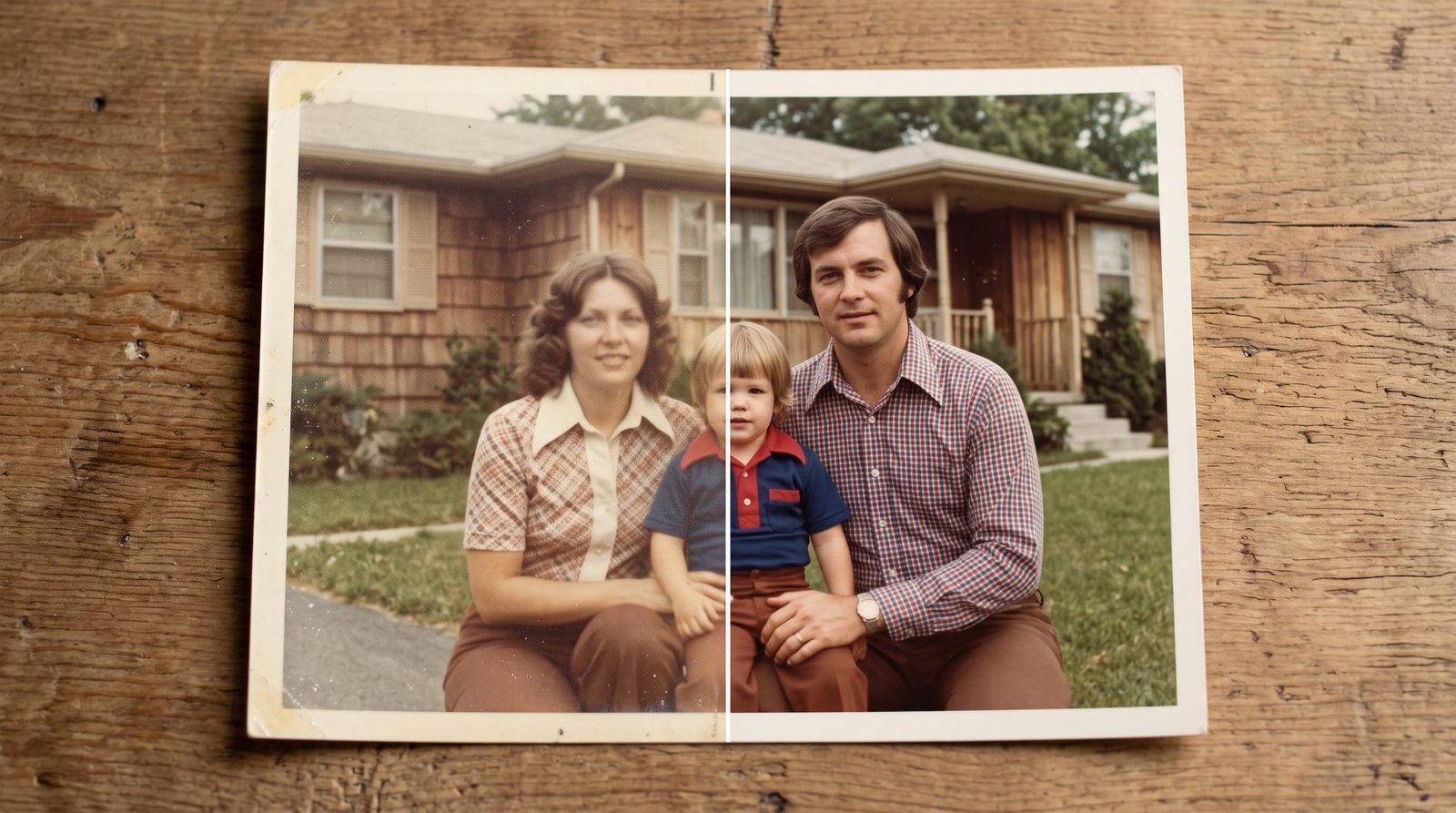
Step 1: Digitize the Photo Properly
The quality of the scan sets the ceiling for the restoration.
- Use a flatbed scanner if you can, at 600 DPI for standard prints and 1200 DPI for small wallet-size photos.
- Phone capture works too. Place the print flat near a window in indirect daylight, hold the phone parallel to the photo, and avoid flash, which causes glare.
- Clean the print and scanner glass with a soft microfiber cloth to reduce dust spots.
- Save as PNG or high-quality JPEG, not a messaging-app copy.
Step 2: Reduce Grain and Noise
Old film grain and scanner noise can confuse upscaling. Raise the Denoise slider first to get clean, smooth tones while keeping facial features.
Step 3: Upscale and Sharpen
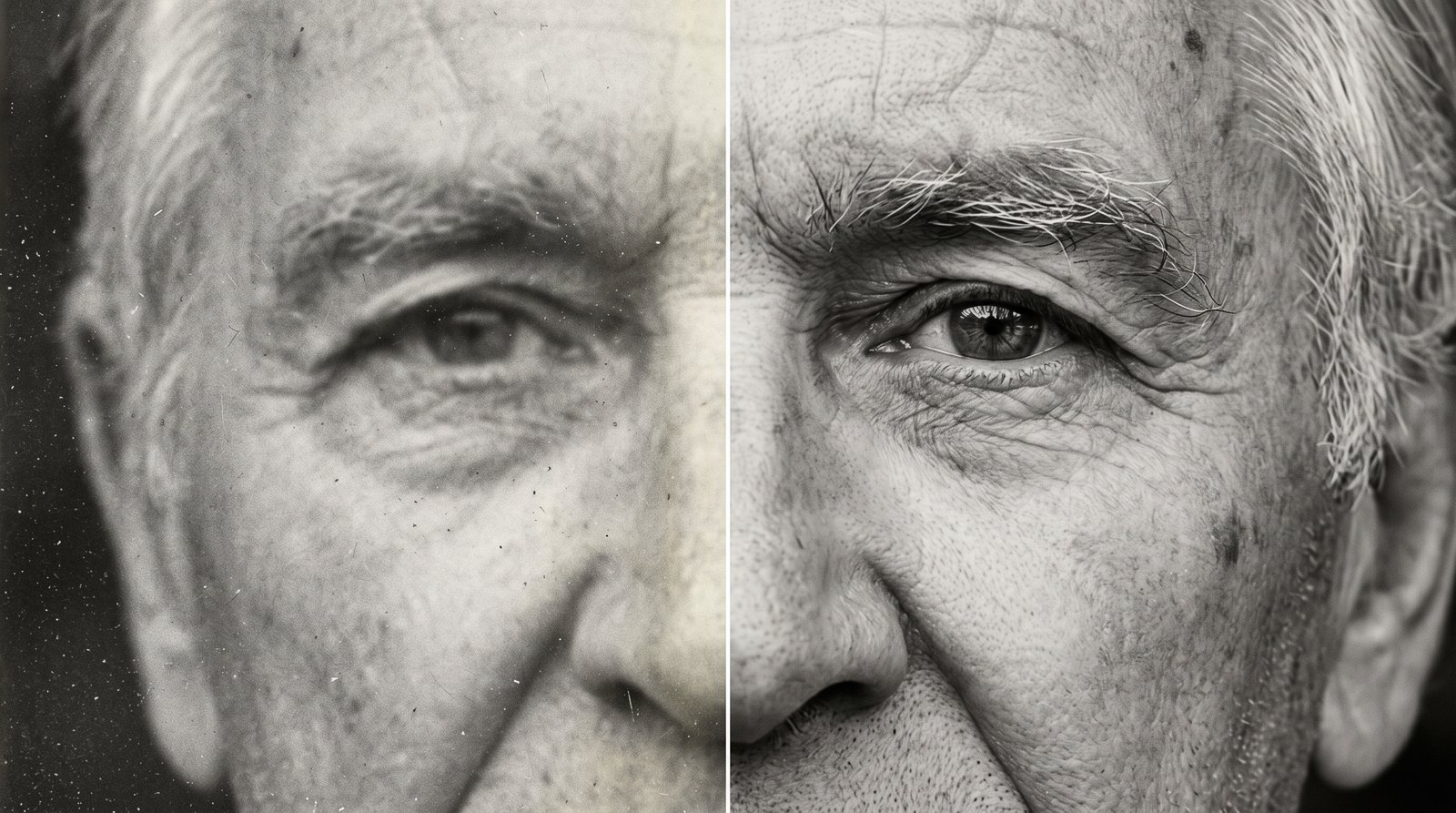
Next, set Upscaling method to AI with the General (photos) model and an Output size of x2 or x4, then click Enhance. The AI model rebuilds edges around eyes, hair and clothing that interpolation would blur. For photos that are only slightly soft, keeping Output size at x1 and adding a little Sharpen may be enough.
Step 4: Compare and Save
Drag the Before/After slider to check that faces still look natural. If the result looks too smooth or “plastic”, try a lower scale or skip the denoise step. Then download and keep a copy of the original scan as well.
What AI Can and Cannot Fix
| Problem | Can AI enhancement help? |
|---|---|
| Grain and scanner noise | Yes |
| Soft focus, low resolution | Yes, often dramatically |
| JPEG compression artifacts | Yes |
| Faded colours | Partly; adjust contrast in a photo editor |
| Tears, creases, missing pieces | No, needs manual retouching |
| Completely out-of-focus faces | Limited; results may not match the real person |
Keep Family Memories Private
Family photos are personal. Crispix processes every image inside your browser with WebGPU, so your photos never reach a server and there is no account, watermark or upload queue.